
Why Are Videos Still Buffering Even Though the Internet Seems Fast?
You’ve paid for a high-speed internet plan, but Netflix or Spotify still take a long time to load. This issue is almost always related to three interconnected factors: video resolution, bitrate, and your actual internet speed-not just the numbers listed in your provider’s brochure. Understanding video resolution, bitrate, and streaming internet speed will help you diagnose the problem and watch without interruptions.
This article breaks down these three concepts one by one, explains how they’re related, and then provides practical steps to ensure your streaming experience is truly seamless.
What Is Resolution, and Why Isn’t It the Only Determinant of Quality?
Resolution refers to the number of pixels that make up the image on the screen. The more pixels there are, the sharper the details appear. Here are the common resolutions you’ll encounter on streaming platforms:
- 480p (SD) - suitable for small phone screens and the lowest data requirements.
- 720p (HD) - clear enough for tablets or 13-inch laptops.
- 1080p (Full HD) - a comfortable standard for most laptop and TV screens.
- 1440p (2K) - starts to look sharp on large monitors.
- 2160p (4K UHD) - maximum detail, ideal for 43-inch and larger smart TVs.
But high resolution alone doesn’t guarantee a good picture. Ever seen a 1080p video that looks blurry or full of blocky artifacts? That’s because the bitrate is too low. Resolution is like the size of a canvas, while bitrate determines how much paint is used to fill that canvas.
Bitrate: The Hidden Factor Behind Video Clarity
Bitrate is the amount of data processed per second while a video is playing, typically measured in Mbps (megabits per second). The higher the bitrate, the more visual information is sent to your screen, and the smoother the result.
Estimated Bitrates for Each Resolution
The following figures are general ranges used by various streaming platforms. Each service may vary slightly depending on their codecs and policies:
- 480p - about 1-2.5 Mbps
- 720p - about 2.5-5 Mbps
- 1080p - about 5-10 Mbps
- 4K UHD - about 15-25 Mbps, even more for HDR content
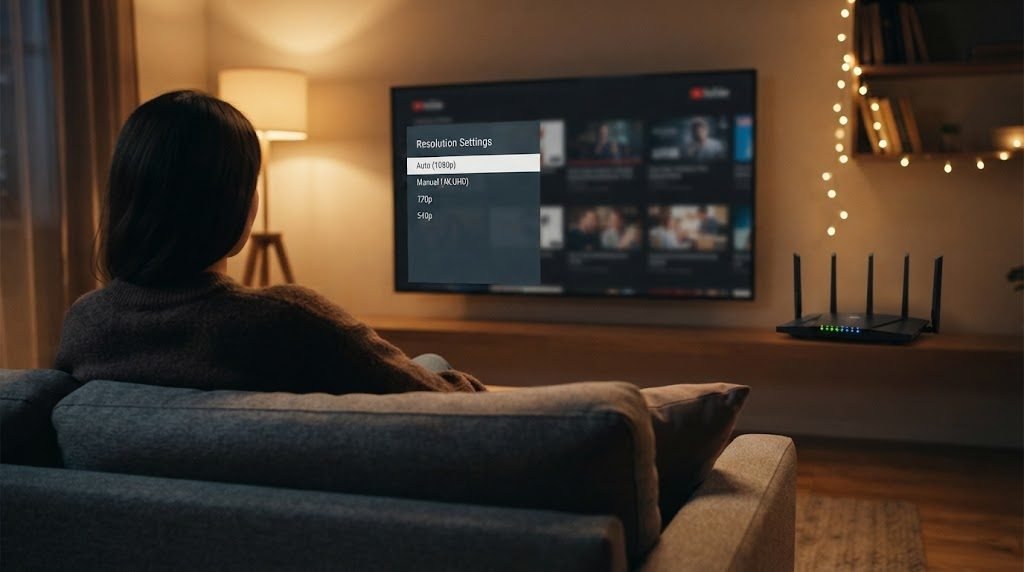
Common mistake: Many people select 4K resolution in the app settings without realizing that their internet connection can only handle data equivalent to 1080p. As a result, the app constantly buffers because it’s trying to download more data than the network can handle.
The Role of Codecs in Reducing Bitrate
A codec is a compression technology that compresses video to reduce its file size without significantly sacrificing quality. Modern codecs like H.265 (HEVC) and AV1 can deliver quality comparable to H.264 at a lower bitrate-meaning you’ll need a slower internet connection for the same resolution. Most major platforms already use these latest codecs, but your device must also support them. Older smart TVs or phones may still use older codecs that consume more data.
Internet Speed: Brochure Numbers vs. Reality
Internet providers usually advertise speeds of “up to” a certain number of Mbps. The word “up to” is important because the actual speed reaching your device is almost always lower. Here are some reasons why:
- Distance to the router-the Wi-Fi signal weakens every time it passes through a wall or floor.
- Number of devices-bandwidth is divided equally. If there are 5 active devices, each gets only one-fifth of the total.
- Peak hours-in the evening, many users in the same area are using the network at the same time, so speeds drop.
- Wi-Fi frequency-the 2.4 GHz band has a wide range but is slower and more prone to interference. The 5 GHz band is faster but has a shorter range.
How to Check Your Actual Internet Speed
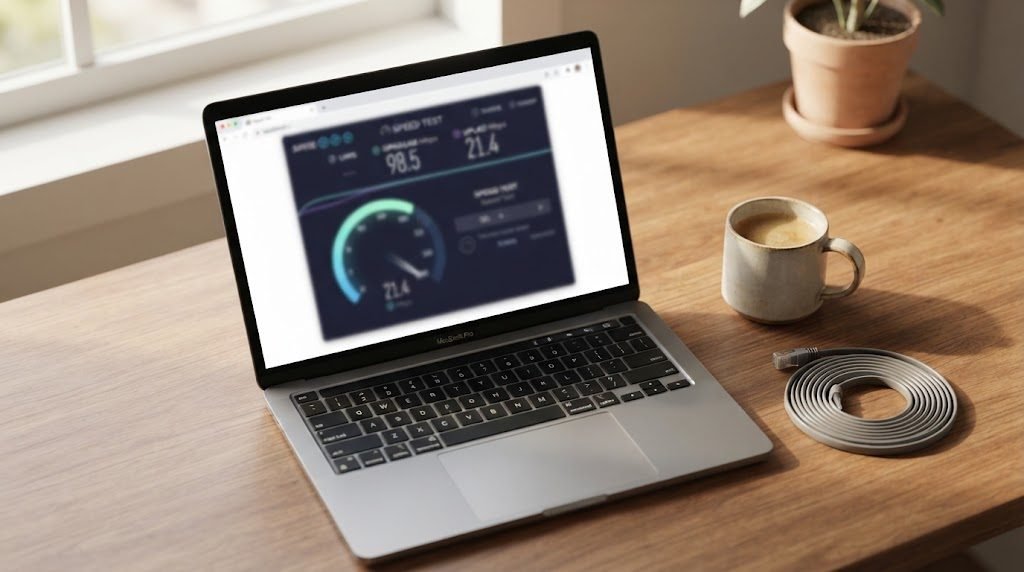
Before blaming the streaming platform, check your actual speed first. Open a speed test site in the browser on the device you’re using to watch-not on another phone. Pay attention to the download speed, not the upload speed. Run this test during the time you usually watch for more realistic results.
The Relationship Between Resolution, Bitrate, and Internet Speed
These three elements work like a chain. Resolution determines how much data is needed, bitrate determines how densely that data is transmitted, and internet speed determines whether your network can deliver it on time.
If your internet speed is consistently around 10 Mbps, you can comfortably watch 1080p on most platforms. But if you try to stream 4K-which requires 20 Mbps or more-the video will frequently pause to load data-that’s what we call buffering.
Minimum Speed Recommendations by Resolution
These figures are general guidelines. It’s best to allocate about 20-30% more bandwidth than the minimum requirement to account for network fluctuations:
- SD (480p) - at least 3 Mbps, ideally 5 Mbps
- HD (720p) - minimum 5 Mbps, ideally 8 Mbps
- Full HD (1080p) - minimum 10 Mbps, ideally 15 Mbps
- 4K UHD - minimum 25 Mbps, ideally 35 Mbps or more
5 Practical Steps to Fix Buffering While Streaming
Now that you understand the theory, here are some steps you can take right away:
- Lower the resolution by one level. If 4K frequently buffers, try 1080p first. The visual difference on a phone or laptop screen is barely noticeable, but data requirements drop significantly.
- Switch to 5 GHz Wi-Fi or use an Ethernet cable. An Ethernet cable provides the most stable connection. If that’s not possible, make sure your device is connected to the 5 GHz band and is positioned close to the router.
- Reduce the number of active devices. Pause large downloads or streaming on other devices while you’re watching.
- Take advantage of the offline download feature. Many streaming platforms let you download episodes in advance when your connection is strong, then watch them later without needing an internet connection at all.
- Check the quality settings in the app. Some apps have an “Auto” mode that adjusts the quality to your internet speed in real time. This mode is usually better than manually selecting the highest resolution.
Common Mistakes That Are Often Overlooked
Assuming All Internet Plans Are the Same
A 50 Mbps internet plan from Provider A isn’t necessarily as stable as a 50 Mbps plan from Provider B. What matters isn’t just peak speed, but also consistency and latency. Check reviews from other users in your area before choosing a provider.
Not Updating Apps and Firmware
Streaming apps and router firmware often receive updates that improve performance and support the latest codecs. Make sure both are always up to date.
Blaming the Platform When the Problem Is with the Device
Smart TVs or phones with limited RAM may experience lag not because of slow internet, but because the device is overwhelmed by processing high-resolution video. Close other apps running in the background and restart your device periodically.
Smooth Streaming Without Breaking the Bank
You don’t always need the fastest internet or the most expensive TV to enjoy a comfortable viewing experience. The key is to match the resolution to your internet speed and device capabilities. Full HD 1080p is more than sufficient for most situations and uses far less bandwidth than 4K.
If you want to try a premium streaming service without immediately committing to a long-term plan, you can rent a daily Netflix pass to test the streaming quality on your internet connection before deciding on a long-term subscription. That way, you can ensure your connection and device are ready before spending more money.